GitHub - lllllllillllllillll/DweebUI: DweebUI is a WebUI for managing your containers. Simple setup, a dynamically updating dashboard, and a
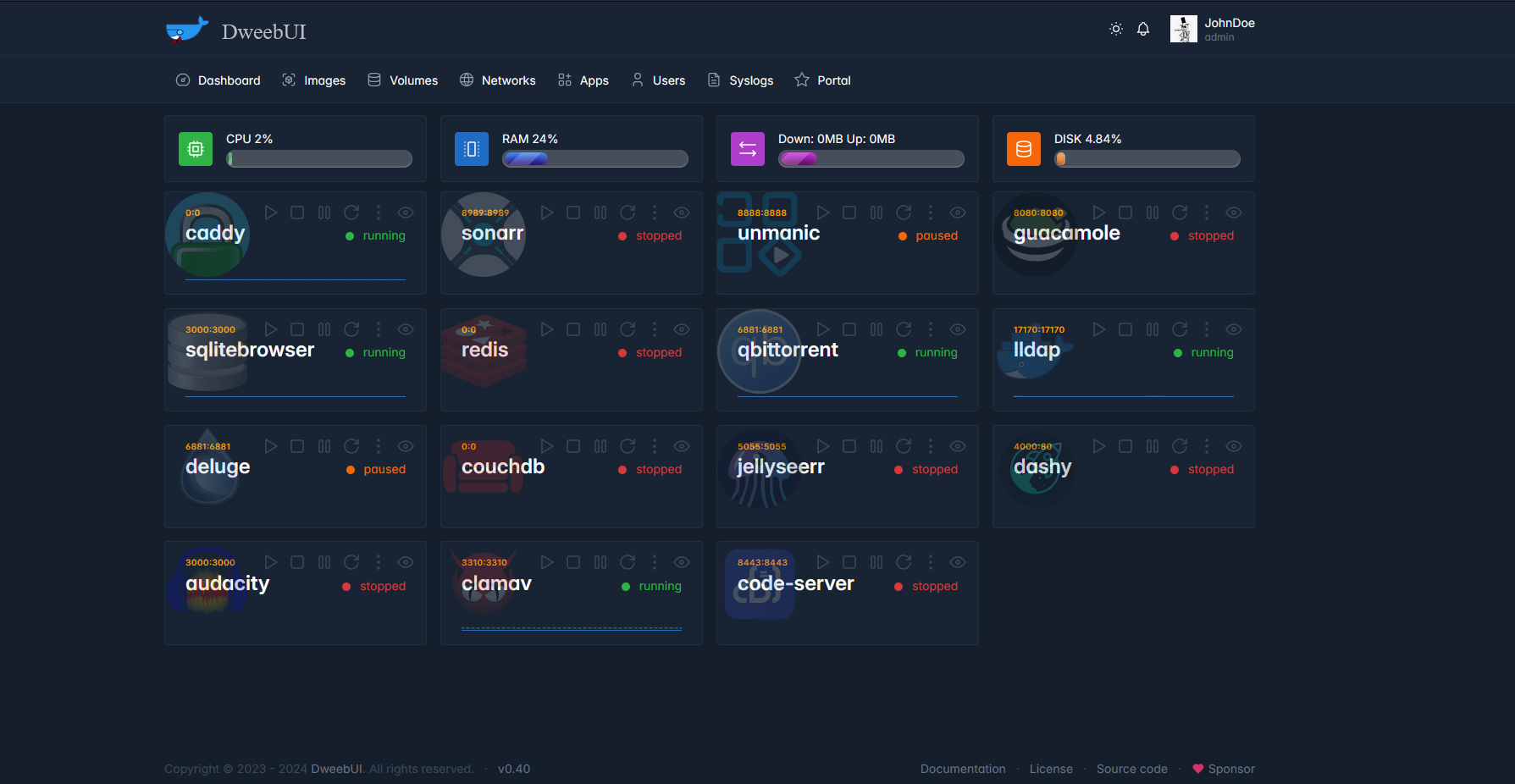
DweebUI Beta v0.60 ( 🔥 Experimental 🔥 ) Free and Open-Source WebUI For Managing Your Containers. Features - A dynamically updating dashboard that displays server metrics along with container metrics and container controls. - Multi-user support with
社区作者 · zZz
它解决什么问题
DweebUI Beta v0.60 ( 🔥 Experimental 🔥 )
Free and Open-Source WebUI For Managing Your Containers.
Features
- A dynamically updating dashboard that displays server metrics along with container metrics and container controls.
- Multi-user support with permissions system.
- Container actions: Start, Stop, Pause, Restart, View Details, View Logs.
- Windows, Linux, and MacOS compatable.
- Light/Dark Mode.
- Mobile Friendly.
- Manage your Docker networks, images, and volumes.
- Easy to install app templates.
Docker Compose Support.- Update containers (planned).
- Templates.json maintains compatability with Portainer, allowing you to use the template without needing to use DweebUI.
- Preset variables (planned).
- Themes (planned).
About
- I started this as a personal project to get more familiar with Javascript and Node.js, so there may be some rough edges and spaghetti code.
- I'm open to any contributions but you may want to wait until I reach v1.0 first.
- Please post issues and discussions so I know what bugs and features to focus on.
- DweebUI is a management interface and should not be directly exposed to the internet.
Setup
Docker Compose:version: "3.9" services: dweebui: container_name: dweebui image: lllllllillllllillll/dweebui environment: PORT: 8000 SECRET: MrWiskers restart: unless-stopped ports:
volumes:
- 8000:8000
- dweebui:/app
Docker socket
- /var/run/docker.sock:/var/run/docker.sock
Podman socket
#- /run/podman/podman.sock:/var/run/docker.sock
networks:
- dweebui_net
volumes: dweebui:
networks: dweebui_net: driver: bridge
Windows and MacOS Setup
Compose setup:
- Paste the above content into a file named docker-compose.yml then place it in a folder named dweebui .
- Open a terminal in the dweebui folder, then enter docker compose up -d .
- You may need to use docker-compose up -d or execute the command as root with either sudo docker compose up -d or sudo docker-compose up -d .
Configuration:
- PORT - Specifies which port the service binds to on startup. Default is 8000 .
- SECRET - A shared secret used by the registration page.
Credits
- Dockerode and dockerode-compose by Apocas: https://github.com/apocas/dockerode
- UI was built using HTML and CSS elements from https://tabler.io/
- Apps template based on Portainer template provided by Lissy93: https://github.com/Lissy93/portainer-templates
- Icons from Walkxcode with some renames and additions: https://github.com/walkxcode/dashboard-icons
Supporters
- MM (Patreon)
- PD (Buymeacoffee)
— 本文由 AI 根据公开来源辅助整理,命令、版本与许可证请在使用前到原始页面复核。
安装 / 开始使用
- Easy to install app templates.
Docker Compose Support.About
Setup
- Update containers (planned).
- Templates.json maintains compatability with Portainer, allowing you to use the template without needing to use DweebUI.
- Preset variables (planned).
- Themes (planned).
- I started this as a personal project to get more familiar with Javascript and Node.js, so there may be some rough edges and spaghetti code.
- I'm open to any contributions but you may want to wait until I reach v1.0 first.
- Please post issues and discussions so I know what bugs and features to focus on.
- DweebUI is a management interface and should not be directly exposed to the internet.
Docker Compose:version: "3.9" services: dweebui: container_name: dweebui image: lllllllillllllillll/dweebui environment: PORT: 8000 SECRET: MrWiskers restart: unless-stopped ports:
volumes:
- 8000:8000
- dweebui:/app
Docker socket
- /var/run/docker.sock:/var/run/docker.sock
Podman socket
#- /run/podman/podman.sock:/var/run/docker.sock networks:
volumes: dweebui: networks: dweebui_net: driver: bridge Windows and MacOS Setup Compose setup:
Configuration:
Credits
Supporters
- dweebui_net
- Paste the above content into a file named docker-compose.yml then place it in a folder named dweebui .
- Open a terminal in the dweebui folder, then enter docker compose up -d .
- You may need to use docker-compose up -d or execute the command as root with either sudo docker compose up -d or sudo docker-compose up -d .
- PORT - Specifies which port the service binds to on startup. Default is 8000 .
- SECRET - A shared secret used by the registration page.
- Dockerode and dockerode-compose by Apocas: https://github.com/apocas/dockerode
- UI was built using HTML and CSS elements from https://tabler.io/
- Apps template based on Portainer template provided by Lissy93: https://github.com/Lissy93/portainer-templates
- Icons from Walkxcode with some renames and additions: https://github.com/walkxcode/dashboard-icons
- MM (Patreon)
- PD (Buymeacoffee)