GitHub - mviereck/x11docker: Run GUI applications and desktops in docker and podman containers. Focus on security.
x11docker: Run GUI applications in Docker or podman containers. Avoid X security leaks and enhance container security Latest release is v7.8.0 Table of contents - Introduction - Docker Desktop or Docker Engine - TL;DR - Features - Supported systems - Terminal
社区作者 · zZz
它解决什么问题
x11docker: Run GUI applications in Docker or podman containers.
Avoid X security leaks and enhance container security
Latest release is v7.8.0
Table of contents
- Introduction
Docker Desktop or Docker Engine- TL;DR
- Features
- Supported systems
- Terminal syntax
- Options
- Choice of X servers and Wayland compositors
- Desktop or seamless mode
- Internet access
- Shared folders and HOME in container
- GPU hardware acceleration
- Clipboard
- Sound
- Webcam
- Printer
- Language locales
- Wayland
- Init system
- DBus
- Container runtime
- Backends other than docker
- Preconfiguration with --preset
- Default preset for all x11docker sessions
- Security
- Security weaknesses
- Options degrading container isolation
- Sandbox
- Security and feature check
- Installation
- Installation from distribution repositories
- Manual installation
- Installation options
- Installed files
- Shortest way for first installation
- Minimal installation
- Installation on MS Windows
- Deinstallation
- Dependencies
- Troubleshooting
- Core checks
- Privilege checks
- Other checks
- Contact
- Issues
- Contributing
- Support
- Donation
- Examples
- Single applications
- Desktop environments
- Adjust images for your needs
- Screenshots
Introduction
x11docker allows to run graphical desktop applications (and entire desktops) in Linux containers.
Containers need much less resources than virtual machines for similar tasks.
- Container tools like Docker and podman allow to run applications in an isolated container environment.
Docker and podman do not provide a display server that would allow to run applications with a graphical user interface .X servers can run from host or in a container of image x11docker/xserver . x11docker supports Wayland as well.
- x11docker fills the gap. It runs an X display server and provides it to containers.
This allows a sandbox environment that fairly well protects the host system from possibly malicious or buggy software.
- Additionally x11docker does some security setup to enhance container isolation and to avoid X security leaks.
Software can be installed in a deployable image with a rudimentary Linux system inside. This can help to run or deploy software that is difficult to install on several systems due to dependency issues.
It is possible to run outdated versions or latest development versions side by side. Files to work on can be shared between host and container.
x11docker wiki provides some how-to's for basic setups without x11docker.
Docker Desktop or Docker EngineSince a while Docker distributes a version called "Docker Desktop" that runs Docker in a QEMU VM. x11docker support of this VM based version is experimental only and some features won't work; however, basic functionality is given.
Instead, rather use x11docker with the native and more performant "Docker Engine Server version" that uses your host kernel to run containers.
- If you install Docker from your distribution's repository, you'll likely get this native version.
- The supported native Docker Engine package name is mostly docker.io or docker-ce , in opposite to the less supported VM based docker-desktop package.
- If you prefer podman over Docker, you don't need to care about this difference.
TL;DR
For a quick start:
- Install x11docker with:
curl -fsSL https://raw.githubusercontent.com/mviereck/x11docker/master/x11docker | sudo bash -s -- --update- Install dependencies :
- Either pull image x11docker/xserver or install at least nxagent or xpra and xephyr .
x11docker IMAGENAME [COMMAND]
- Run a GUI in container with:
- Add options :
- --desktop for a desktop environment in image.
- --gpu for hardware acceleration.
x11docker x11docker/xfce thunar x11docker --desktop x11docker/xfce x11docker --gpu x11docker/xfce glxgears
- Examples :
Features
- Focus on security :
- Avoids X security leaks by running additional X servers .
- Restricts container capabilities to bare minimum.
- Container user is same as host user to avoid root in container.
- Low dependencies :
- No obliging dependencies on host beside X and one of docker or podman . Recommended: nxagent and Xephyr , alternatively image x11docker/xserver .
- No dependencies inside of images except for some optional features.
- Several optional features like GPU , sound , webcam and printer support.
or HTML5 possible.
- Remote access with SSH , VNC
- Easy to use. Examples :
- x11docker x11docker/fvwm xterm
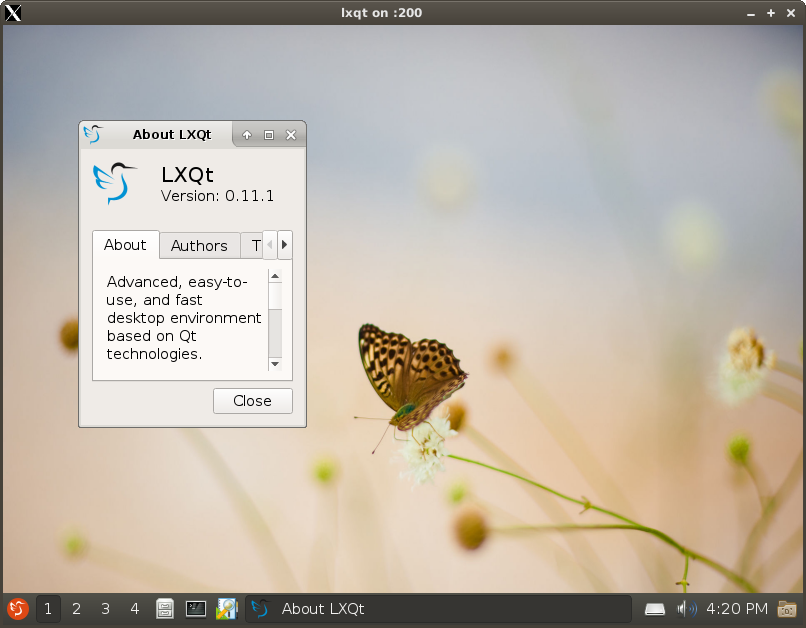
- x11docker --desktop --size 320x240 x11docker/lxde (needs nested X server Xephyr )
Supported systems
x11docker runs on Linux and (with some setup and limitations) on MS Windows . x11docker does not run on macOS except in a Linux VM.
Terminal syntax
Just type x11docker IMAGENAME [COMMAND] .
- Get an overview of options with x11docker --help .
- For desktop environments in image add option -d, --desktop .
- For internet access use option -I, --network .
- To run without X at all use option -t, --tty .
- Get an interactive TTY with option -i, --interactive .
- See generated container backend command (and further infos) with option --debug .
- If startup fails, look at chapter Troubleshooting .
General syntax:
Usage: To run a container on a new X server: x11docker IMAGE x11docker [OPTIONS] IMAGE [COMMAND] x11docker [OPTIONS] -- IMAGE [COMMAND [ARG1 ARG2 .]] x11docker [OPTIONS] -- CUSTOM_RUN_OPTIONS -- IMAGE [COMMAND [ARG1 ARG2 .
]] To run a host application on a new X server: x11docker [OPTIONS] --backend=host COMMAND x11docker [OPTIONS] --backend=host -- COMMAND [ARG1 ARG2 .] x11docker [OPTIONS] --backend=host -- -- COMMAND [ARG1 ARG2 .
] -- [ARG3] To run only an empty new X server: x11docker [OPTIONS] --xonly
CUSTOM_RUN_OPTIONS are just added to the docker|podman run command without a serious check by x11docker.
Options
Description of some commonly used feature options .
Compare wiki: feature dependencies .
- Some of these options have dependencies on host and/or in image.
- For often used option combinations you can make shortcuts with option --preset .
Choice of X servers and Wayland compositors
If no X server option is specified, x11docker automatically chooses one depending on installed dependencies and on given or missing options --desktop , --gpu , --wayland and --xw . Most lightweight are nxagent and Xephyr .
- Overview of all possible X server and Wayland options.
- Hints to use option --xorg within X.
- Indicate a desktop environment with option --desktop .
- Use option --wayland to get a Wayland environment.
- Use option --xw to run X and Wayland applications side by side.
- Use option -t, --tty to run without X or Wayland at all.
Desktop or seamless mode
x11docker assumes that you want to run a single application in seamless mode, i.e. a single window on your regular desktop. If you want to run a desktop environment in image, add option --desktop .
- Seamless mode is supported with options --nxagent and --xpra . As a fallback insecure option --hostdisplay is possible.
- Desktop mode with --desktop is supported with all X server options except --hostdisplay . If available, x11docker prefers --xephyr and --nxagent .
- Special case: Single applications with a window manager (option --wm ).
- If neither nxagent nor xpra are installed, but x11docker finds a desktop capable X server like Xephyr , it avoids insecure option --hostdisplay and runs Xephyr with a window manager.
- Running X and Wayland applications side by side is possible with --weston-xwayland --wayland , or, if running in a Wayland environment, with --hostdisplay --hostwayland .
Internet access
By default x11docker disables Network access for containers with --network=none because it targets best possible container isolation. To allow internet access set option -I or --network .
Shared folders, volumes and HOME in container
Changes in a running container system will be lost, the created container will be discarded. For persistent data storage you can share host directories or volumes:
Files in container home and user configuration changes will persist. x11docker creates a softlink from ~/.local/share/x11docker to ~/x11docker .
- Option -m, --home creates a host directory in ~/.local/share/x11docker/IMAGENAME that is shared with the container and mounted as its HOME directory.
- You can specify another host directory for container HOME with --home=DIR .
- You can specify a volume for container HOME with --home=VOLUME .
- Option --share PATH mounts a host file or folder at the same location in container.
- You can also specify a volume with --share VOLUME .
- --share PATH:ro restricts to read-only access.
- Device files in /dev are supported, too.
- Special cases for $HOME :
- --home=$HOME will use your host home as container home. Discouraged, use with care.
- --share $HOME will symlink your host home as a subfolder of container home.
Note that x11docker copies files from /etc/skel in container to HOME if HOME is empty. That allows to provide predefined user configurations in the image.
GPU hardware acceleration
Hardware acceleration for OpenGL is possible with option -g, --gpu .
- This will work out of the box in most cases with open source drivers on host. Otherwise have a look at wiki: feature dependencies .
and support less x11docker X server options for driver version < v470.x and Xwayland < v22.1.2.
- Closed source NVIDIA drivers need some setup
Clipboard
Clipboard sharing is possible with option -c, --clipboard [=ARG] .
- Optional argument cmv only provide host clipboard content to container if keys [CTRL][META][v] are pressed.
- Optional arguments c2h and h2c only transfers clipboard content from container to host or vice versa.
- Support of Wayland and X11 clipboards. Wayland windows might flicker due to focus issues with Wayland clipboard checks.
Sound
Sound is possible with options --pipewire , --pulseaudio and --alsa .
Pipewire packages for jack are available, too. Compare wiki: feature dependencies .
- For pipewire sound with --pipewire you need pipewire on host and pipewire in image. You likely also need pipewire-pulse and/or pipewire-alsa .
- Special case: If you have pipewire and pipewire-pulse on host and pulseaudio client libraries in image, --pulseaudio=tcp would work.
Compare wiki: feature dependencies .
- For pulseaudio sound with --pulseaudio you need pulseaudio on host and pulseaudio (at least the pulseaudio client libraries) in image.
- For ALSA sound with --alsa you might need to specify a sound card with e.g. --alsa=Generic . Get a list of available sound cards with aplay -l .
Webcam
Webcams on host can be shared with option --webcam .
Compare wiki: feature dependencies .
- If webcam application in image fails, install --gpu dependencies in image.
- guvcview needs --pulseaudio or --alsa .
- cheese and gnome-ring need --init=systemd .
Printer
Printers on host can be provided to container with option --printer .
- It needs cups on host, the default printer server for most linux distributions.
Compare wiki: feature dependencies .
- The container needs cups client libraries in image.
Language locales
x11docker provides option --lang for flexible language locale settings.
- --lang without an argument sets LANG in container to same as on host. Same as --lang=$LANG
- x11docker will check on container startup if the desired locale is already present in image and enable it.
Compare wiki: feature dependencies .
- If x11docker does not find the locale, it creates it on container startup. This needs some locale packages in image.
- Examples: --lang=de for German, --lang=zh_CN for Chinese, --lang=ru for Russian, --lang=$LANG for your host locale.
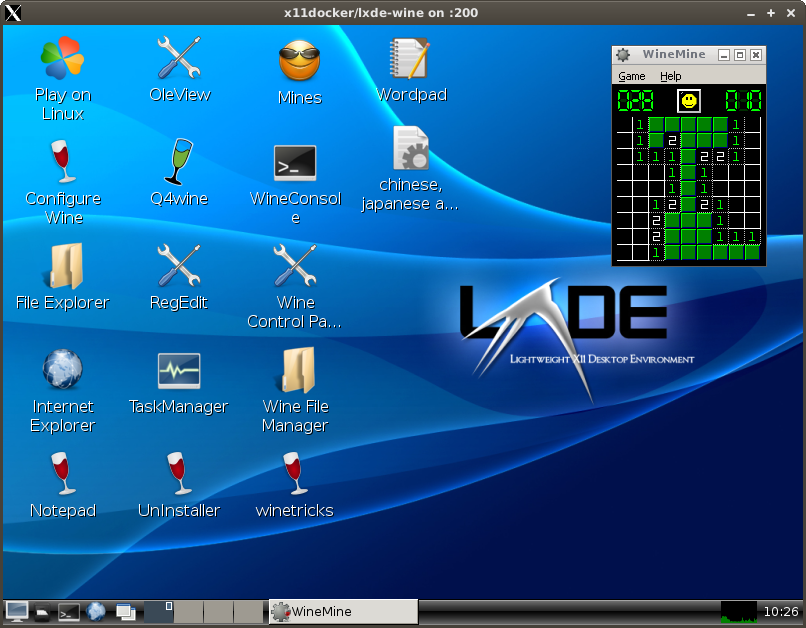
- For support of chinese, japanese and korean characters install a font like fonts-arphic-uming in image.
- Keyboard input methods like fcitx-pinyin are possible with some container setup. Compare ticket #269 .
Wayland
To run Wayland instead of an X server x11docker provides options --wayland , --weston and --hostwayland . For further description loot at wiki: Description of Wayland options .
- Option --wayland automatically sets up a Wayland environment. It regards option --desktop .
- Options --weston runs Wayland compositor weston .
- Option --hostwayland can run applications seamless on host Wayland desktops like Gnome 3, KDE 5 and Sway .
- Example: xfce4-terminal on Wayland: x11docker --wayland x11docker/xfce xfce4-terminal
Init system
x11docker supports several init systems as PID 1 in container with option --init . Init in container solves the zombie reaping issue . As default x11docker uses tini in /usr/bin/docker-init .
Also available are systemd , SysVinit , runit , OpenRC and s6-overlay . elogind is supported, too. Look at wiki: Init systems in Docker .
DBus
Some desktop environments and applications need a running DBus system daemon and/or DBus user session. DBus options need dbus in image.
- use --dbus to run a DBus user session daemon.
- A DBus system daemon will be started automatically with init systems systemd , openrc , runit and sysvinit (option --init ).
- It is also possible to run a DBus system daemon with --dbus=system without advanced init systems. However, this causes trouble in some cases and is not recommended in general.
- use --hostdbus to connect to host DBus user session.
- use --share /run/dbus/system_bus_socket to share host DBus system socket.
Container runtime
It is possible to run containers with different backends following the OCI runtime specification . Docker's default runtime is runc . You can specify another one with option --runtime=RUNTIME . Container runtimes known and supported by x11docker are:
runc :
Docker default.Specialized fork of runc to support nvidia/nvidia-docker images.
- nvidia :
- crun : Fast and lightweight alternative to runc with same functionality.
- oci : Runtime reported in #205 , no documentation found. Handled by x11docker like runc .
Support is experimental yet. Needs Sybox>=0.5.0 and kernel version >=5.12.
- sysbox-runtime : Based on runc, aims to enhance container isolation.
Using different runtimes is well tested for rootful Docker, but not for other backend setups .
Example: possible runtime configuration in /etc/docker/daemon.json :
{ "default-runtime" : " runc " , "runtimes" : { "crun" : { "path" : " /usr/local/bin/crun " , "runtimeArgs" : [] }, "nvidia" : { "path" : " nvidia-container-runtime " , "runtimeArgs" : [] }, "sysbox-runc" : { "path" : " /usr/bin/sysbox-runc " } } }
Backends other than docker
x11docker supports container tools Docker and podman with option --backend=BACKEND in rootful and rootless mode.
Supported --backend arguments
docker podman hostContainer backends:
- By default x11docker tries to run docker .
- To change the default --backend=docker to another one like --backend=podman , create a default file for --preset .
Recommended for rootful container backend:
docker or podmanRecommended for rootless container backend:
podman- Only podman allows option --home in rootless mode yet.
- Only podman provides useful file ownerships with option --share in rootless mode yet.
Other supported backends that are in fact no containers:
- --backend=host runs a host application on a new X server. No containerization is involved.
Preconfiguration with --preset
For often used option combinations you might want to use option --preset FILENAME to have a command shortcut. FILENAME is a file in ~/.config/x11docker/preset or in /etc/x11docker/preset containing some x11docker options.
--gpu --webcam --printer --pipewire --clipboard --share ~/Videos --share ~/Music
- Example multimedia : Create a file ~/.config/x11docker/preset/multimedia :
Use it like: x11docker --preset=multimedia jess/vlc
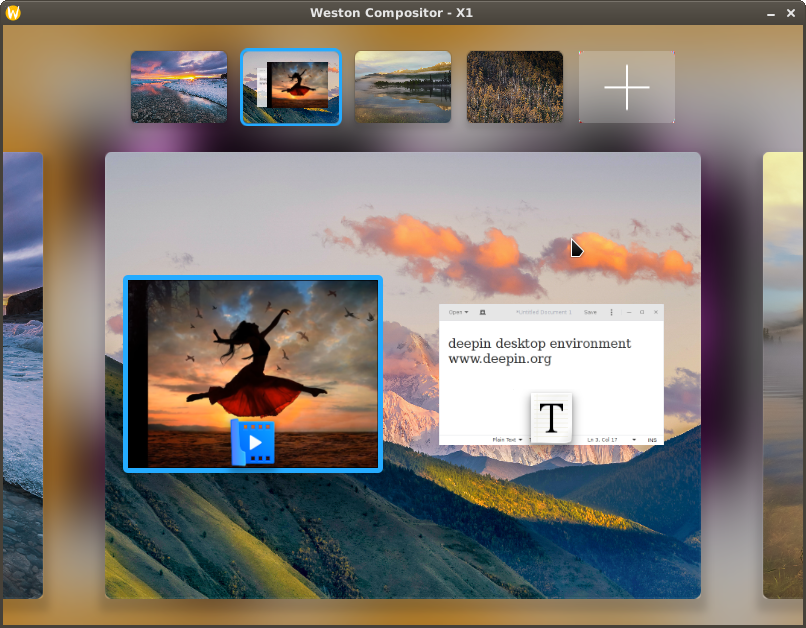
x11docker --desktop --init=systemd --gpu --pulseaudio --home -- --cap-add=IPC_LOCK -- x11docker/deepin
- Example deepin desktop: Instead of long command
you can create a file ~/.config/x11docker/preset/deepin containing the desired options and even the image name: --desktop --init=systemd --gpu --pulseaudio --home -- --cap-add=IPC_LOCK -- x11docker/deepin
Run with: x11docker --preset=deepin
Default preset for all x11docker sessions
You can create a default preset file that is applied on all x11docker sessions. You can think of it as a configuration file for x11docker.
--backend=podman
- Example: To always use podman instead of docker, create a file with name default in ~/.config/x11docker/preset or in /etc/x11docker/preset with content:
This will cause x11docker to always use podman instead of docker unless specified otherwise in the x11docker command.
The same way you can specify other and more options as default, e.g. --homebasedir=/my/containerhome/path . Note that a local user default file will supersede a system wide default file.
Security
Scope of x11docker is to run containerized GUI applications while preserving and improving container isolation. Core concept is:
- Runs a second X server to avoid X security leaks .
(However, x11docker provides this with fallback option --hostdisplay ).
- This in opposite to widespread solutions that share host X socket of display :0, thus breaking container isolation, allowing keylogging and remote host control.
- Authentication is done with MIT-MAGIC-COOKIE, stored separate from file ~/.Xauthority .
- Creates container user similar to host user to avoid root in container .
- You can also specify another user with --user=USERNAME or a non-existing one with --user=UID:GID .
- Disables possible root password and deletes entries in /etc/sudoers .
- If you want root permissions in container, use option --sudouser that allows su and sudo with password x11docker .
- If you want to use USER specified in image instead, set option --user=RETAIN . x11docker won't change container's /etc/passwd or /etc/sudoers in that case. Option --home won't be available.
- Reduces container capabilities to bare minimum.
- Sets run option --cap-drop=ALL to drop all capabilities. Most applications don't need them.
- Sets run option --security-opt=no-new-privileges .
- These restrictions can be disabled with x11docker option --cap-default or reduced with --sudouser , --newprivileges .
That being said, the default docker capabilities and the seccomp/SELinux/apparmor profiles are set up well to protect the host system. Nonetheless, x11docker follows the principle of least privilege .
Containers should not have capabilities or privileges that they don't need for their job.
Security weaknesses
A more restrictive solution is desirable. Compare: SELinux and Docker: allow access to X unix socket in /tmp/.X11-unix
- Possible SELinux restrictions are degraded for x11docker containers with run option --security-opt label=type:container_runtime_t to allow access to new X unix socket.
- A possible user namespace remapping setup is disabled to allow options --home and --share without file ownership issues.
- This is less an issue because x11docker already avoids root in container.
- Exception: User namespace remapping is not disabled for --user=RETAIN .
Each X server involved might have its individual vulnerabilities. x11docker only covers well-known X security leaks that result from X11 protocol design.
- x11docker provides several different X server options.
It will be used automatically in most cases if available. Enforce its usage with option --xc=yes .
- An additional security layer for most supported X servers is set up if image x11docker/xserver is available.
Options degrading container isolation
x11docker shows warning messages in terminal if chosen options degrade container isolation. Note that x11docker does not check custom DOCKER_RUN_OPTIONS .
Most important:
- --hostdisplay shares host X socket of display :0 instead of running a second X server.
- Danger of abuse is reduced providing so-called untrusted cookies, but do not rely on this.
- If additionally using --gpu or --clipboard , option --ipc=host and trusted cookies are enabled and no protection against X security leaks is left.
- If you don't care about container isolation, x11docker --hostdisplay --gpu is an insecure but quite fast setup without any overhead.
- --gpu allows access to GPU hardware. This can be abused to get window content from host ( palinopsia bug ) and makes GPU rootkits like keyloggers possible.
- --pipewire , --pulseaudio and --alsa allow catching audio output and microphone input from host.
Rather special options reducing security, but not needed for regular use:
If an application somehow breaks out of container, it can harm your host system. Allows many container capabilities that x11docker would drop otherwise.
- --sudouser allows su and sudo with password x11docker for container user.
If an application somehow breaks out of container, it can harm your host system.
- --cap-default disables x11docker's container security hardening and falls back to default container capabilities as provided by the backends docker or podman.
--init=systemd also shares access to /sys/fs/cgroup . Some processes will run as root in container. If a root process somehow breaks out of container, it can harm your host system. Allows many container capabilities that x11docker would drop otherwise.
- --init=systemd|sysvinit|openrc|runit allow some container capabilities that x11docker would drop otherwise.
- --hostdbus allows communication over DBus with host applications.
Sandbox
Container isolation enhanced with x11docker allows to use containers as a sandbox that fairly well protects the host system from possibly malicious or buggy software.
Though, no sandbox solution in the wild can provide a perfect secure protection, and Docker even with enhanced security settings from x11docker is no exception.
Using x11docker as a sandbox is not intended to run obviously evil software. Rather use it as:
- Compatibility environment to run software that is hard or impossible to install on host due to dependency issues.
- Development environment to collect libraries, compiler and so on to keep the host clean.
- Development environment to mitigate damage caused by unexpected/buggy behaviour.
- Security layer for software that may be malicious in worst case. Examples: Internet browser with enabled javascript , or wine with MS Windows applications.
x11docker already restricts process capabilities. You can additionally restrict access to CPU and RAM with option --limit . As default --limit restricts to 50% of available CPUs and 50% of currently free RAM.
Another amount can be specified with --limit=FACTOR with a FACTOR greater than zero and less than or equal one.
For more custom fine tuning have a look at Docker documentation: Limit a container's resources .
WARNING : There is no restriction that can prevent the container from flooding the hard disk storing the container or in shared folders.
Security and feature check
To check container isolation and some feature options use image x11docker/check and try out with several options.
- An insecure setup is x11docker --hostdisplay --gpu x11docker/check . It fairly well demonstrates common X security leaks.
- Add options like --pulseaudio --alsa --webcam --clipboard --printer to check their functionality.
Installation
Note that x11docker is just a bash script without library dependencies. Basically it is just a wrapper for X servers and container backends docker and podman. To allow advanced usage of x11docker abilities have a look at chapter Dependencies .
Installation from distribution repositories
x11docker is available as a package in some distributions.
Much thanks to the maintainers who decided to provide these packages! There are some hints for packaging x11docker in the wiki.
Stable releases: Latest release is v7.8.0 . The following badges need some time to refresh.
Latest git master/beta version:
Manual installation
Installation options
As root you can install, update and remove x11docker in system directories to be available system-wide:
- x11docker --install : install x11docker from current directory. (Useful to install from an extracted zip file or a cloned git repository.)
- x11docker --update : download and install latest release from github.
- x11docker --update-master : download and install latest master version from github.
- x11docker --remove : remove all files installed by x11docker.
- Note: This does not remove ~/.local/share/x11docker where it stores persistent files of option --home .
Now it installs into /usr/local/bin . Use --remove-oldprefix to remove /usr/bin installations.
- x11docker --remove-oldprefix : Before version 7.6.0 x11docker installed itself into /usr/bin .
To see the difference between current and coming updated version, you can use optional argument diff for --update and --update-master .
Example: x11docker --update-master=diff will show you the code changes from your current installation to latest master/beta version without installing it.
Installed files
What the installation does (just for information):
- Copies script x11docker to /usr/local/bin .
- Installs icon x11docker.png below /usr/share/icons using xdg-icon-resource .
- Copies documentation README.md , CHANGELOG.md and LICENSE.txt to /usr/local/share/doc/x11docker .
- Stores man page for x11docker in /usr/local/share/man/man1/x11docker.1.gz .
Shortest way for first installation:
- For systems using sudo :
curl -fsSL https://raw.githubusercontent.com/mviereck/x11docker/master/x11docker | sudo bash -s -- --update- Directly as root :
curl -fsSL https://raw.githubusercontent.com/mviereck/x11docker/master/x11docker | bash -s -- --updateMinimal installation
You can run x11docker from an arbitrary location with bash x11docker or ./x11docker . For minimal system-wide installation make x11docker executable with chmod +x x11docker and move it to /usr/local/bin (or another location in PATH ).
Other files than script x11docker itself are not essential.
Installation on MS Windows
x11docker can run natively on MS Windows electively in one of:
- WSL (Windows subsystem for Linux)
- Cygwin
- MSYS2
Further information at wiki: x11docker on MS Windows .
Deinstallation
You can remove x11docker with x11docker --remove . That will remove the files listed above . It will also remove ~/.cache/x11docker and stop all running x11docker containers. x11docker will not remove:
- Files and folders for persistent data storage with option --home . These are:
- ~/.local/share/x11docker where persistent data is stored.
- Softlink ~/x11docker that points there.
- Folders you might have created yourself for x11docker:
- ~/.local/share/x11docker
- ~/.config/x11docker
Dependencies
x11docker can run with standard system utilities without additional dependencies on host or in image.
- As a core it only needs bash and one of docker or podman or to run containers on X.
most optional x11docker dependencies and several X servers and Wayland compositors so you won't need to install them on host.
- x11docker also needs an X server. x11docker can automatically use image x11docker/xserver that provides
- If you prefer to install dependencies on host:
Some of them are probably already installed.
- The recommended base commands are: nxagent Xephyr weston Xwayland xdotool xauth xinit xclip xhost xrandr xdpyinfo .
- See wiki: Dependencies - Recommended base for a package list matching your distribution.
Dependencies in image:
- Some feature options have additional dependencies on host and/or in image. This affects especially options --gpu , --printer , --pipewire and --pulseaudio .
- Compare wiki: feature dependencies .
Troubleshooting
For troubleshooting run x11docker in a terminal. x11docker shows warnings if something is insecure, missing or going wrong. Also it shows notes if options don't work and fallbacks are used. It might give hints to fix some issues.
Co
— 本文由 AI 根据公开来源辅助整理,命令、版本与许可证请在使用前到原始页面复核。
安装 / 开始使用
Introduction x11docker allows to run graphical desktop applications (and entire desktops) in Linux containers.
Containers need much less resources than virtual machines for similar tasks.
- Installation
- Installation from distribution repositories
- Manual installation
- Installation options
- Installed files
- Shortest way for first installation
- Minimal installation
- Installation on MS Windows
- Deinstallation
- Dependencies
- Troubleshooting
- Core checks
- Privilege checks
- Other checks
- Contact
- Issues
- Contributing
- Support
- Donation
- Examples
- Single applications
- Desktop environments
- Adjust images for your needs
- Screenshots
- Container tools like Docker and podman allow to run applications in an isolated container environment.
Docker and podman do not provide a display server that would allow to run applications with a graphical user interface .X servers can run from host or in a container of image x11docker/xserver . x11docker supports Wayland as well.
This allows a sandbox environment that fairly well protects the host system from possibly malicious or buggy software. Software can be installed in a deployable image with a rudimentary Linux system inside.
This can help to run or deploy software that is difficult to install on several systems due to dependency issues. It is possible to run outdated versions or latest development versions side by side. Files to work on can be shared between host and container.
x11docker wiki provides some how-to's for basic setups without x11docker.
- x11docker fills the gap. It runs an X display server and provides it to containers.
- Additionally x11docker does some security setup to enhance container isolation and to avoid X security leaks.
Docker Desktop or Docker EngineSince a while Docker distributes a version called "Docker Desktop" that runs Docker in a QEMU VM. x11docker support of this VM based version is experimental only and some features won't work; however, basic functionality is given.
Instead, rather use x11docker with the native and more performant "Docker Engine Server version" that uses your host kernel to run containers.
TL;DR For a quick start:
- If you install Docker from your distribution's repository, you'll likely get this native version.
- The supported native Docker Engine package name is mostly docker.io or docker-ce , in opposite to the less supported VM based docker-desktop package.
- If you prefer podman over Docker, you don't need to care about this difference.
- Install x11docker with:
curl -fsSL https://raw.githubusercontent.com/mviereck/x11docker/master/x11docker | sudo bash -s -- --updatex11docker IMAGENAME [COMMAND]
x11docker x11docker/xfce thunar x11docker --desktop x11docker/xfce x11docker --gpu x11docker/xfce glxgears Features
or HTML5 possible.
Supported systems x11docker runs on Linux and (with some setup and limitations) on MS Windows . x11docker does not run on macOS except in a Linux VM. Terminal syntax Just type x11docker IMAGENAME [COMMAND] .
General syntax: Usage: To run a container on a new X server: x11docker IMAGE
- Install dependencies :
- Either pull image x11docker/xserver or install at least nxagent or xpra and xephyr .
- Run a GUI in container with:
- Add options :
- --desktop for a desktop environment in image.
- --gpu for hardware acceleration.
- Examples :
- Focus on security :
- Avoids X security leaks by running additional X servers .
- Restricts container capabilities to bare minimum.
- Container user is same as host user to avoid root in container.
- Low dependencies :
- No obliging dependencies on host beside X and one of docker or podman . Recommended: nxagent and Xephyr , alternatively image x11docker/xserver .
- No dependencies inside of images except for some optional features.
- Several optional features like GPU , sound , webcam and printer support.
- Remote access with SSH , VNC
- Easy to use. Examples :
- x11docker x11docker/fvwm xterm
- x11docker --desktop --size 320x240 x11docker/lxde (needs nested X server Xephyr )
- Get an overview of options with x11docker --help .
- For desktop environments in image add option -d, --desktop .
- For internet access use option -I, --network .
- To run without X at all use option -t, --tty .
- Get an interactive TTY with option -i, --interactive .
- See generated container backend command (and further infos) with option --debug .
- If startup fails, look at chapter Troubleshooting .